
Index
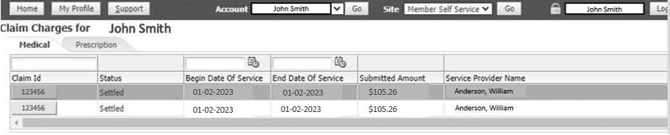
How to View the Status of All Claims on File
Steps:
-
Select View Coverage on the bottom right of the screen.
-
Select Claims in the row of buttons toward the middle of the screen.
(See screenshot below for example view.)
 How to Access Explanation of Benefits (EOB)
From Claims
-
Select View Coverage on the bottom right of the screen.
-
Select Claims in the row of buttons toward the middle of the screen.
-
Click on the Claim ID next to the date of service you would like to view (far left column).
-
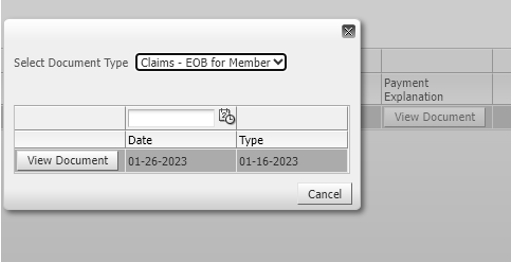
Under the heading Payment Explanation, select View Document.
-
In the pop-up screen, select View Document again.
(See screenshots in original guide for process flow.)
From Documents
-
Select View Coverage on the bottom right of the screen.
-
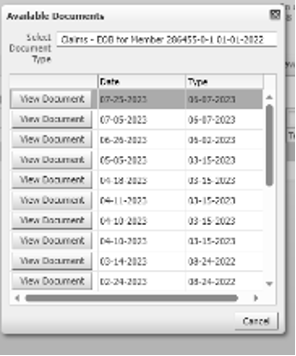
Select Documents in the row of buttons toward the middle of the screen.
-
In the pop-up screen, select View Document next to the date of service you would like to view.
How to Change Password
Steps:
-
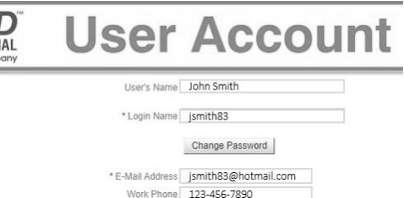
Click My Profile in the upper left corner under the Allied National logo.
-
Select the Change Password button under your login name.
-
Enter the required fields and click Submit
How to Grant Access to Another User
Steps:
-
Click My Profile in the upper left corner under the Allied National logo.
-
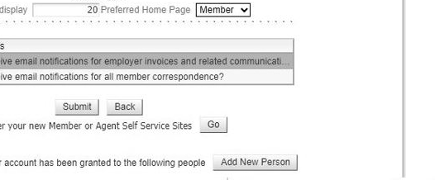
Click the Add New Person button near the bottom right of the page.
-
Enter the required fields and click Submit.
Note: You can only share access to your claims with someone else on the policy.
How to Opt-Out of Email Correspondence
Steps:
-
Click My Profile in the upper left corner under the Allied National logo.
-
Uncheck the box next to:
“Opt-in to receive email notifications for all member correspondence?” -
Click Submit.
